Fix Problems
Turn off Rosetta for Logic Pro
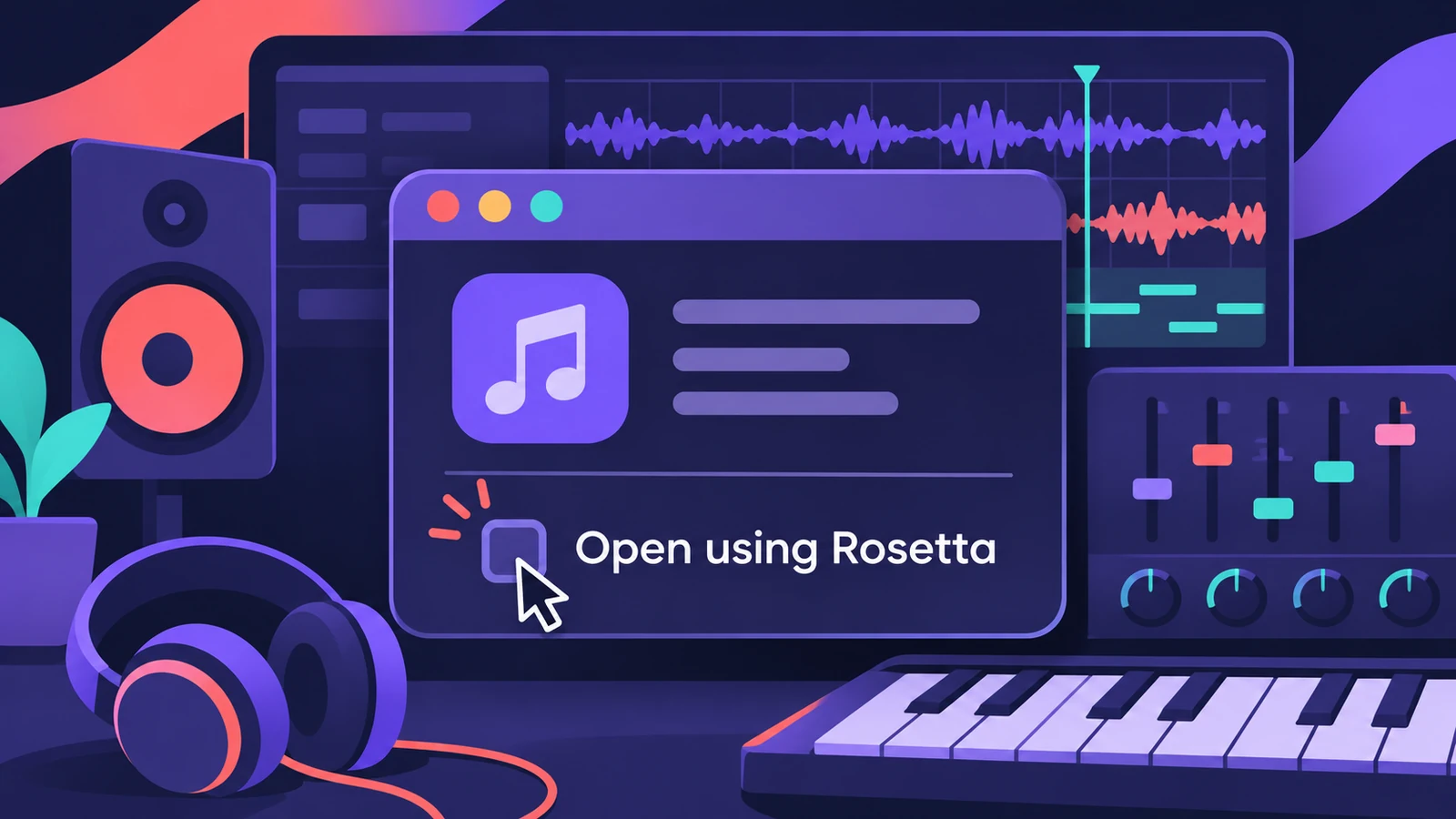
On a Mac with Apple silicon, Logic Pro runs best natively. Opening it in Rosetta hides several features, and Apple says most plug-ins don't need Rosetta at all. Here's how to check and switch it off.
 Owen Hartley
Applies to: Logic Pro for Mac on Macs with Apple silicon.
Most likely causes
- Open using Rosetta turned on in Get Info (most common)
Native vs Rosetta
Running natively gives you every Logic Pro feature — see features missing on Intel or Rosetta. If a plug-in disappears after switching, see plug-ins not showing.
Fixes, in order
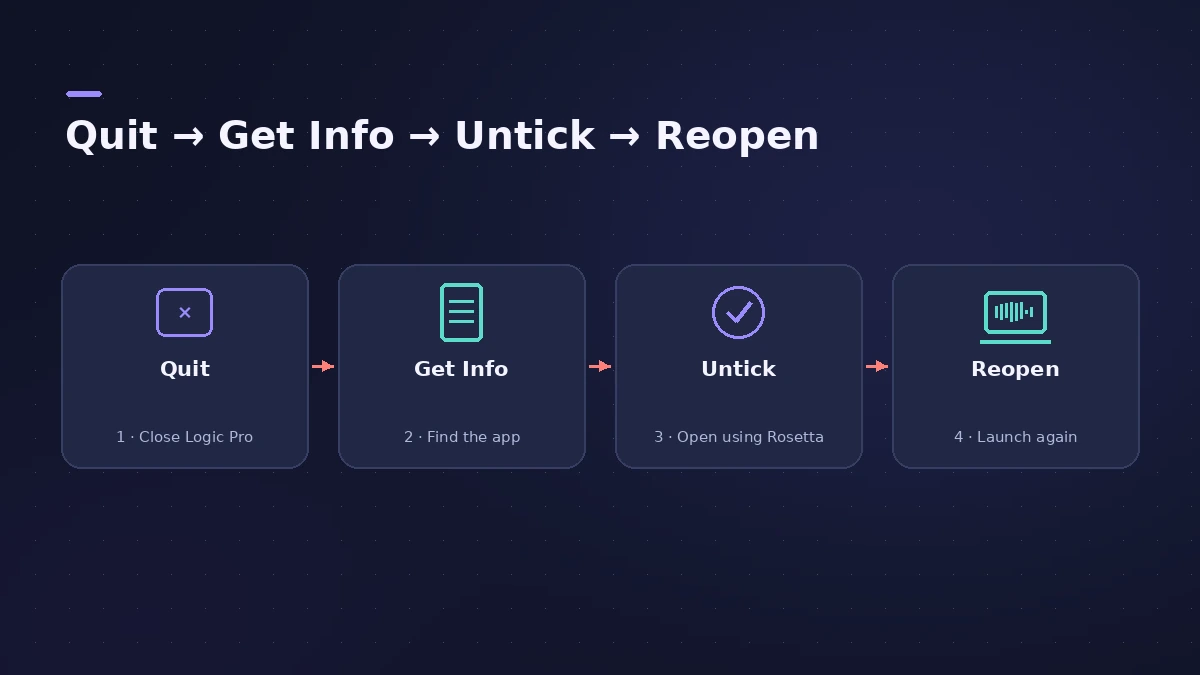
1. Quit Logic Pro
Rosetta can only be changed while the app is closed.
2. Open Get Info
In the Applications folder, Control-click Logic Pro and choose Get Info.
3. Deselect Open using Rosetta
Untick the checkbox, close the window and open Logic Pro again.
4. Check your plug-ins
If a plug-in only works in Rosetta, update it or check with the manufacturer.
Sources
- Apple Support — Turn off Rosetta for Logic Pro for Mac
- Apple Support — If you can't find ChromaGlow, Stem Splitter or other Logic Pro features on Mac
Checked November 2026. Logic ProFiles is independent of Apple; menu names can differ slightly between Logic Pro versions.
Frequently asked questions
Should I run Logic Pro in Rosetta?
+
Usually not. Apple says the only reason is a third-party plug-in used in ARA mode, such as Melodyne.
What do I lose in Rosetta?
+
Stem Splitter, ChromaGlow and most Mastering Assistant presets.
Related
- Flex Pitch vs MelodyneFlex Pitch vs Melodyne: Logic Pro's free tuning handles single-note parts; Melodyne 5 ($99–$699) edits chords from Editor up and runs via ARA in Logic Pro.
- Stem Splitter or ChromaGlow missing in Logic ProCan't find Stem Splitter or ChromaGlow, or Mastering Assistant styles are greyed out? They need Apple silicon and don't work in Rosetta. Check your Mac.
- Plug-ins not showing in Logic Pro — how to make them appearInstalled a plug-in but Logic Pro doesn't list it? Check it's an Audio Unit in the Components folder, then rescan in the Plug-in Manager or reset the AU cache.
- How to install third-party plug-ins in Logic ProInstall third-party plug-ins for Logic Pro: it uses Audio Units, which go in the Components folder. Install, restart, check the Plug-in Manager.
- Fix Logic Pro problems — errors, crashes and no soundStep-by-step fixes for Logic Pro on Mac: system overload, disk too slow, no sound, crashes, latency, missing plug-ins, MIDI keyboards and recording problems.