Fix Problems
Clicks, pops and crackles in Logic Pro
Clicks and crackles during playback or recording usually mean the Mac can't fill the audio buffer in time. Apple's I/O buffer exists to protect against dropouts, clicks and pops, so the buffer size is the first thing to change — then find what's using the processing power.
 Owen Hartley
Applies to: Logic Pro 13, 12 and 11 for Mac, with built-in audio or an audio interface.
Most likely causes
- I/O buffer too small for the project (most common)
- One track overloading a single processing thread (common)
- Heavy plug-ins on a record-enabled or monitored track (common)
- Clicks recorded into the audio file itself (occasional)
Buffer size: recording vs mixing
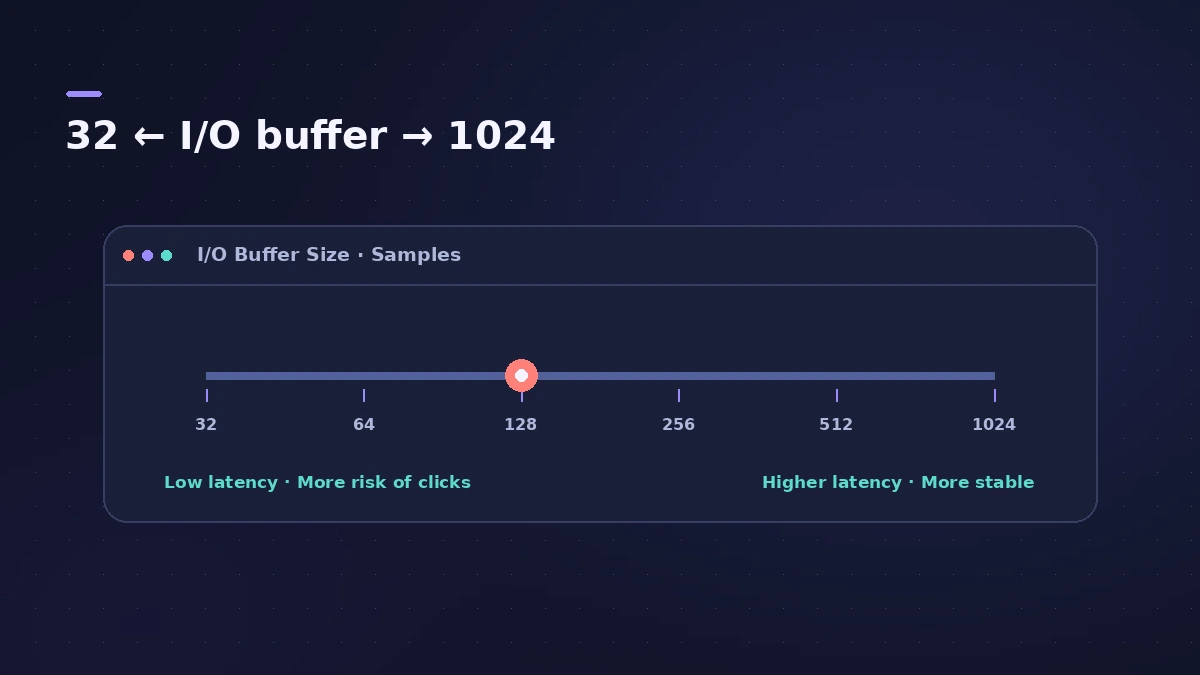
The buffer trades latency for stability. Use the latency calculator to see what a buffer size means in milliseconds, and the latency guide for recording settings.
If an alert appears too
When the crackles come with a "System Overload" message, follow the system overload fixes — the causes are the same.
Fixes, in order
1. Raise the I/O buffer size
In Logic Pro > Settings > Audio > Devices, choose the next larger I/O Buffer Size. Larger buffers need less processing power but add latency.
2. Use a small buffer only while recording
Apple suggests the lowest buffer when recording and raising it if you get overloads; for mixing, a large buffer is fine.
3. Check Multithreading
Community experts often suggest setting Multithreading to Playback Tracks when you don't need heavy live tracks.
4. Watch the record-enabled track
Community experts point out that a track being recorded runs on a single processor core, so heavy plug-ins on it overload sooner.
5. Find the heavy plug-in
Open the Performance Meter, then bypass plug-ins on the busiest track until the crackles stop.
6. Check the recorded file
If the clicks are visible in the waveform, they were recorded — raising the buffer now won't remove them; re-record or repair the region.
Sources
- Apple — Manage input monitoring latency in Logic Pro for Mac (May 2026)
- Apple — Avoid system overloads in Logic Pro for Mac (May 2026)
- Apogee — Experiencing clicks and pops on Mac while mixing
- Apple Community — Logic Pro cracking/popping during recording
- Apple Community — Logic Pro random CPU spikes (single-core recording track)
Checked November 2026. Logic ProFiles is independent of Apple; menu names can differ slightly between Logic Pro versions.
Frequently asked questions
Why does Logic Pro crackle when I play?
+
Usually the I/O buffer is too small for the work Logic Pro has to do, so audio isn't ready in time. Raise the buffer size first.
Will a bigger buffer remove clicks from a recording?
+
No. It prevents new clicks; clicks already recorded into the file stay there.
What buffer size should I use?
+
The smallest that plays cleanly while recording, and a large one while mixing.
Related
- Logic Pro system overload — how to find the cause and fix itLogic Pro says System Overload? Use the Performance Meter to see if CPU or disk is the cause, then fix it with the buffer, freezing and Sampler settings.
- Logic Pro latency — how to fix delay when recordingHearing a delay when you record in Logic Pro? Lower the I/O buffer, turn on Low Latency Monitoring Mode, use direct monitoring and avoid Bluetooth headphones.
- Buffer latency calculatorConvert Logic Pro's I/O buffer size to milliseconds at any sample rate. See one-buffer and input-plus-output delay for 32 to 1024 samples, with the formula.
- Fix Logic Pro problems — errors, crashes and no soundStep-by-step fixes for Logic Pro on Mac: system overload, disk too slow, no sound, crashes, latency, missing plug-ins, MIDI keyboards and recording problems.