
Fix a problem / Mac
Logic Pro bounce is silent, incomplete or too long: test the failing range
Quick answer
Keep the project unchanged and bounce a short section you can hear clearly during playback. Check the chosen output, Start and End values, audible tracks and the resulting file in another player. If external hardware is part of the signal path, compare the documented realtime route. Distinguish a wrong range from a missing audio path or a plug-in-specific render failure.
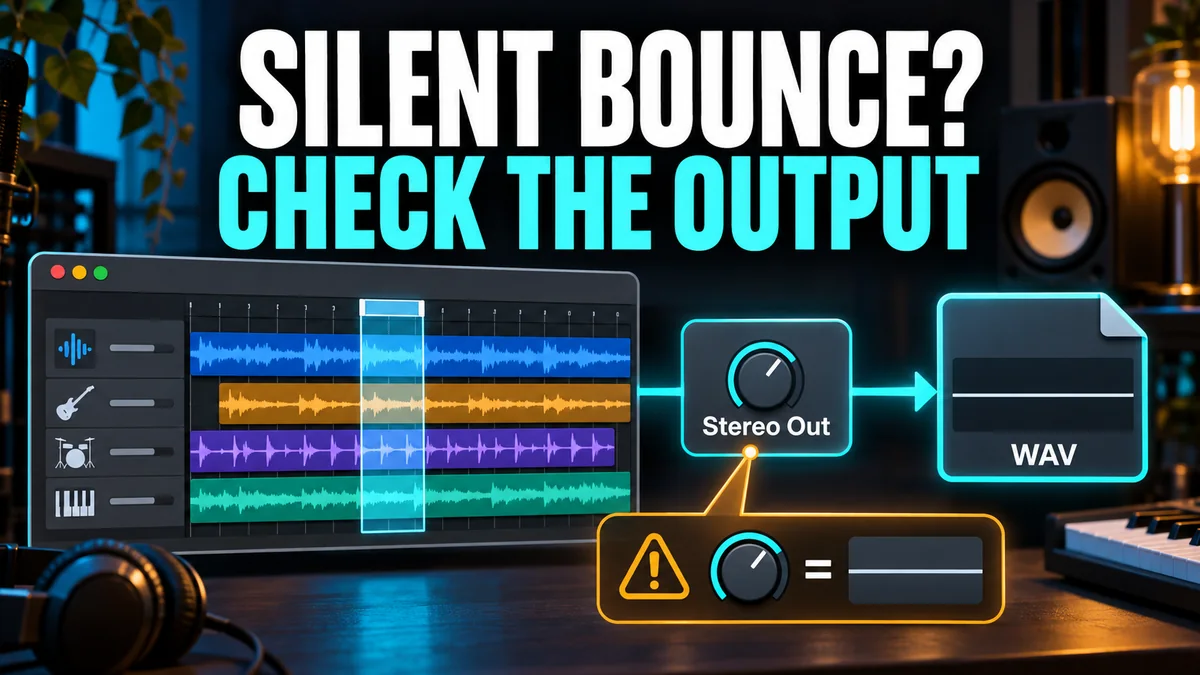
Match your symptom
| What happens | First check |
|---|---|
| Exported file is silent | Check output and a short known-audible range |
| Some tracks or effects disappear | Trace their route to the bounced output |
| File is too long or ends early | Inspect Start, End and tail options |
| Playback works but offline bounce differs | Compare realtime and processing dependencies |
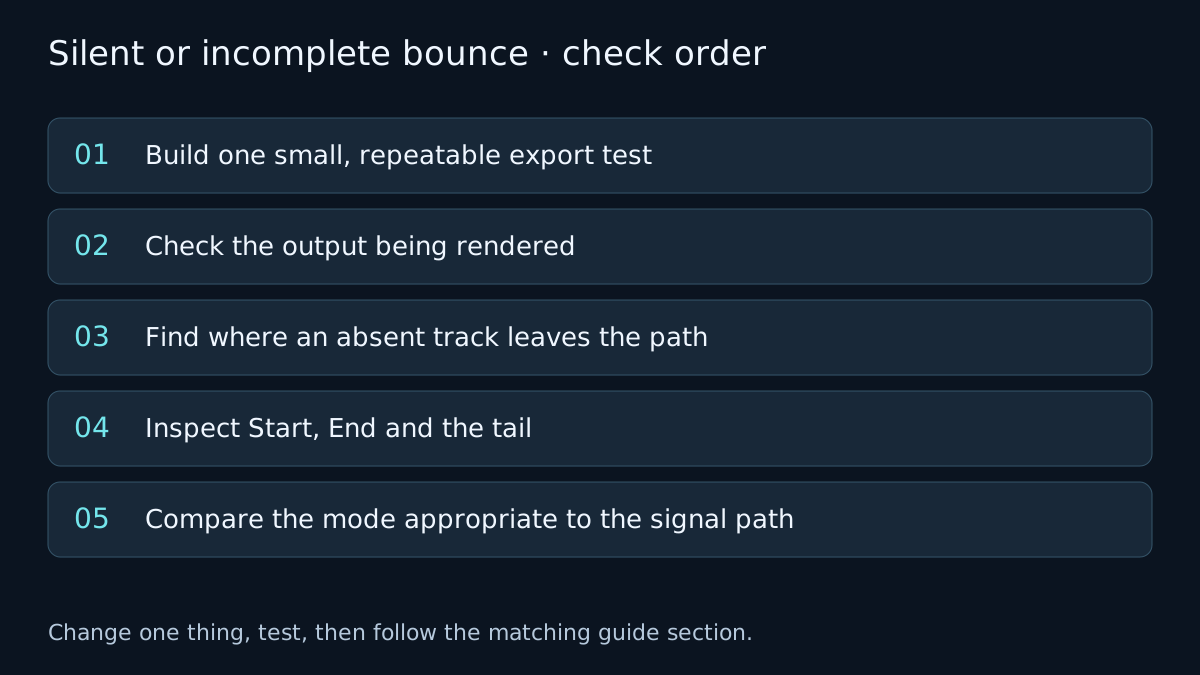
Build one small, repeatable export test
Save a copy or retain the current saved state, then pick a short passage containing the affected track. Note the settings used and export a test file to a known location. Open that file in another player and confirm its duration and content.
Do not change the sample rate, the complete plug-in chain and the bounce mode at once. If the result changes, you need to know which variable caused it. The bounce preflight checklist helps record the choices; it cannot listen to the exported file for you.
Check the output being rendered
Confirm that the output channel you intend to bounce receives the mix. A track meter moving does not prove its signal reaches the selected output. Follow the track through any buses and auxiliary channels to that output.
If the same passage is silent during normal playback, use no-sound troubleshooting first. If playback is audible but the test file is empty, verify the range, chosen output and any external-input dependency before resetting the project.
Find where an absent track leaves the path
Check mute, solo, region state and automation over the actual bounce range. Compare the track’s output with the channel being rendered. Distinguish a project bounce from Bounce in Place or separate track exports: they render different parts of a session and offer different options.
If the affected sound depends on an external synthesizer or audio insert, identify the hardware return. For processing suspected of behaving differently during render, bypass one suspected plug-in on a test copy and repeat exactly the same short bounce. A successful test narrows the cause; it does not establish that every version of that plug-in is faulty.
Inspect Start, End and the tail
Open the Bounce dialog and read its Start and End values. Do not rely only on what is highlighted in the arrangement. Cycle state can affect the proposed range. Check the settings again after changing the cycle or selection.
Apple documents Include Audio Tail for extending the rendered file to include instrument release or effect tails. Decide whether that suits the deliverable, then inspect the actual end of the test. A strict-duration delivery and a reverb tail need a deliberate range choice rather than a universal checkbox setting.
Use the main bounce guide for the complete export controls and track export guide when separate aligned files are the goal.
Compare the mode appropriate to the signal path
Apple’s Logic Pro 12.3 guide distinguishes Automatic, Offline and Realtime modes. Offline render cannot capture an external hardware performance as if it were an internal software instrument. Use the documented realtime route for external MIDI sound sources routed back into the mixer, or record the required return first.
If an internal-only project fails in one mode, compare one short realtime test and inspect the result. That comparison can identify a render-path difference; it is not a reason to deliver an unchecked file or to assume realtime fixes every plug-in problem.
Verify the fix
- Listen to the short test outside Logic and confirm each affected track.
- Export the intended complete range and inspect its beginning, ending and transitions.
- Check duration, channel format and naming before sharing; keep the settings that produced the verified file.
If the result changes, note which check changed it. If it does not, undo the test where appropriate and follow the next relevant branch. A failed test narrows the problem; it does not identify a component with certainty.
Frequently asked questions
Why can playback work while the bounced file is silent?
The bounced output, selected range, external hardware path or a processing dependency can differ. Start with one audible range and trace the chosen output.
Should every project be bounced in realtime?
No. Choose the mode for the sources and processing involved, then inspect the rendered file. External hardware requires the appropriate realtime or recorded-audio route.
Related guides
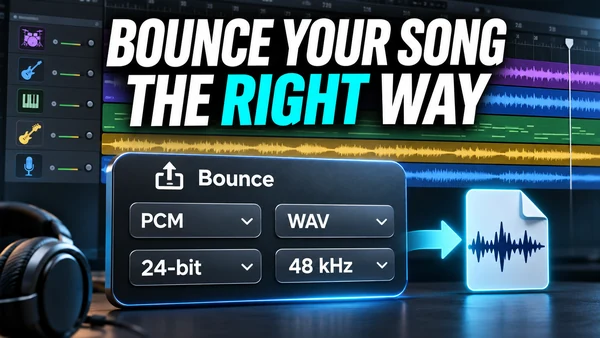 Export
How to bounce a song in Logic Pro
Bounce a Logic Pro project or section with File > Bounce > Project or Section. Every dialog option explained, settings per destination, Bounce in Place, iPad.
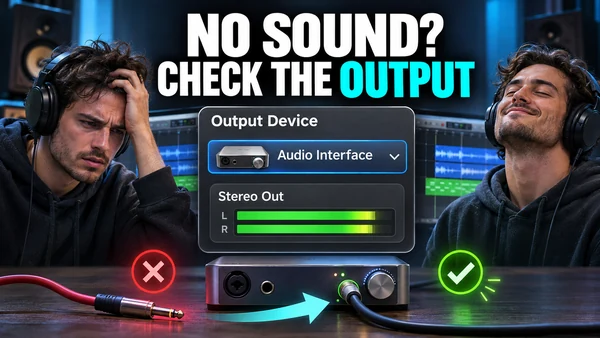 Fix
Logic Pro has no sound: follow the signal chain
No sound in Logic Pro? Check the Output Device in Logic Pro > Settings > Audio > Devices, macOS Sound output, mute and solo, track routing and sample rate.
 Export
How to export stems from Logic Pro
Export stems from Logic Pro with File > Export > All Tracks as Audio Files: dialog options, Track Stack stems, naming for a mix engineer, tails, automation.
Choose a guided check · All troubleshooting topics · Search every guide
Sources and version notes
Based on Apple documentation; reviewed 8 November 2026. This is a documentation review, not a claim of hands-on testing on every Logic, macOS or interface version. Archived guides are labelled; confirm menu names in the help for your installed release.